How To Use
Phasmo Companion helps you identify ghosts in Phasmophobia by tracking evidence in real time. As you collect evidence, the app narrows down which ghost you are dealing with.
Selecting Evidence
Each evidence button cycles through three states when clicked:
- Unselected — default state, no evidence collected yet.
- Confirmed — you have found this evidence. The ghost must have it.
- Ruled Out — you have confirmed this evidence is not present. The ghost cannot have it.
Click a third time to return to unselected.
Ghost Cards
Ghost cards update automatically as you select evidence. Ghosts that are no longer possible are dimmed. The remaining evidence shown on each card represents clues still needed to confirm that ghost.
Strikethrough Evidence
If an evidence button becomes faded with a strikethrough, it means no possible ghost requires that evidence based on your current selections. You do not need to rule it out manually — the app has already accounted for it.
Resetting
Click the Reset button in the Evidence section to clear all selections and start fresh for a new round.
Connecting to Stream Deck
The Phasmo Companion Stream Deck plugin lets you toggle evidence and reset the board directly from your Stream Deck, keeping your hands free during investigation.
Step 1 — Install the Plugin
- Open the Stream Deck application on your computer.
- Click the More Actions icon (the grid icon at the bottom of the action list).
- Search for Phasmo Companion and install the plugin from the Elgato Marketplace.
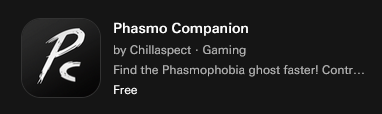
Searching for Phasmo Companion in the Elgato Marketplace
Step 2 — Add Actions to Your Deck
- Drag an Evidence Toggle action onto a key for each piece of evidence you want to track.
- Select the evidence type from the dropdown in the property inspector for each key.
- Optionally, drag a Reset Evidence action onto a key to reset all evidence from your Stream Deck.
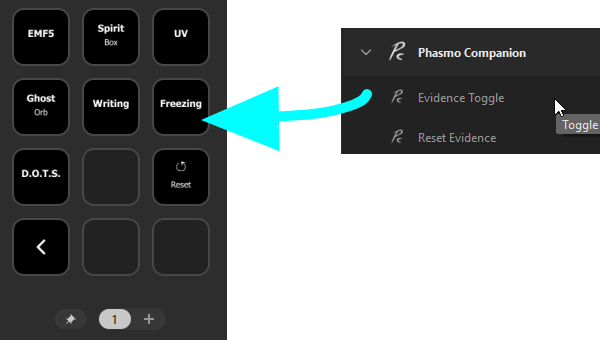
Dragging Evidence Toggle actions onto your Stream Deck keys
Step 3 — Set the Server URL
- Open the property inspector for any Evidence Toggle key and locate the Server URL field.
- If you are using the hosted version at phasmo.chillaspect.com, the default value is already correct — no changes needed:
wss://phasmo.chillaspect.com/stream - The URL is shared across all actions — it only needs to be set once.
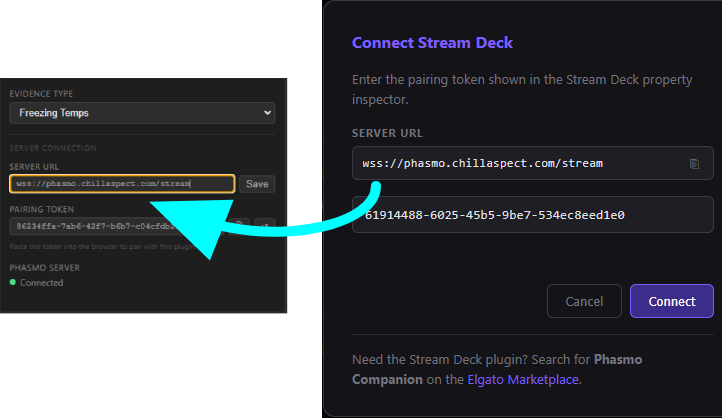
Setting the Server URL in the property inspector
Step 4 — Pair with the Web App
- In the property inspector, copy your Pairing Token using the copy button ⎘.
- Open Phasmo Companion in your browser.
- Click the Stream Deck button in the top-right corner of the page.
- Paste the token into the input field and click Connect.
- The indicator on the Stream Deck button turns green when connected.
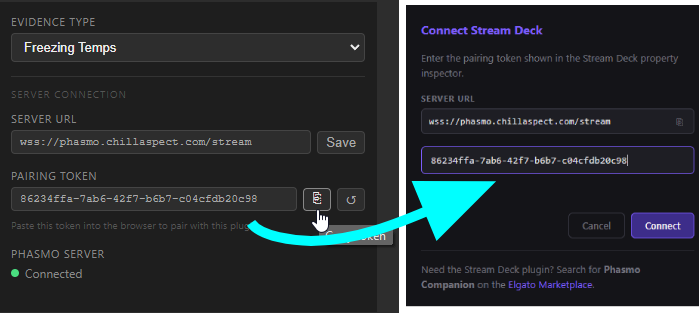
Pasting the pairing token into the Stream Deck connect dialog
Troubleshooting
If the property inspector shows Disconnected:
- Verify the Server URL is correct and the server is reachable.
- The plugin retries automatically every 5 seconds — wait a moment and check again.
- If the web app shows a red dot or no indicator, refresh the page and re-enter your token.
- If Stream Deck buttons do not affect the web app after making configuration changes, refresh the web page and reconnect.
Contact
If you have an issue or a question, feel free to reach out at chill@chillaspect.com.